
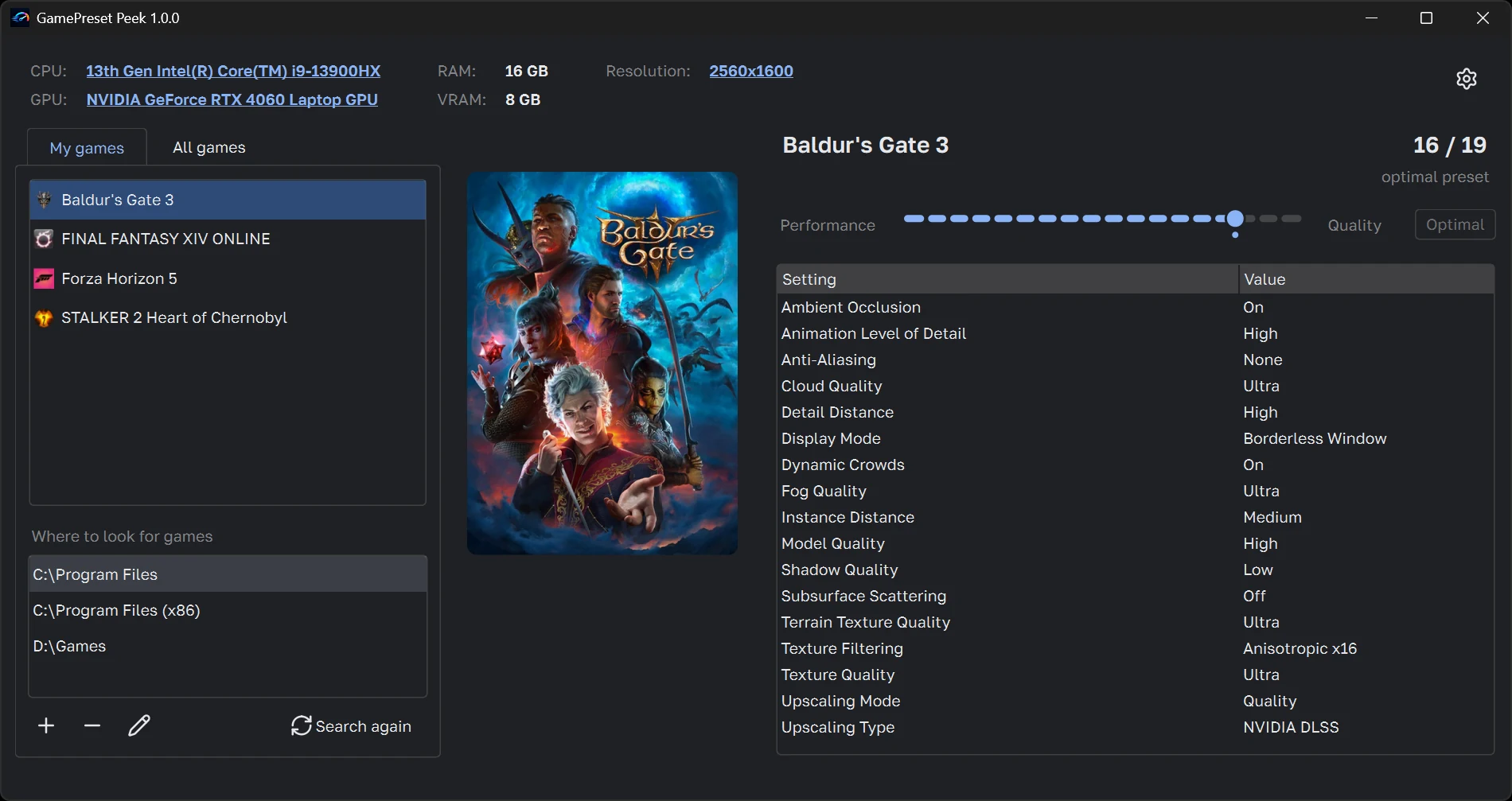
What it does
Pick a game, and the app shows its recommended graphics settings for your processor, graphics card and screen resolution, along with every other preset NVIDIA has for that game, from performance to quality.
Your games and all games
"My games" lists the games installed on this PC; "All games" lists every game NVIDIA has recommendations for, with box art and search.
Your hardware, or any other
The processor, graphics card, memory and resolution are detected; change them to see the settings for another PC.
Every preset
The recommended preset comes first; a slider goes through the others and marks the values that differ.
Five languages
English, Russian, German, French and Spanish, setting names included. Light and dark themes.
Weekly updates
The lists of processors, graphics cards and games update every week without a new version of the app.
Private
No accounts, telemetry, ads or analytics. It sends only what NVIDIA needs to return the presets.
Installation
- Download
GamePresetPeek-<version>-setup.exeor the portable zip from the latest release. - Run the installer (no administrator rights needed) and choose a normal or a portable installation, or
unpack the zip anywhere and run
GamePresetPeek.exe. - The app is not code-signed yet, so Windows SmartScreen may warn about it: click More info → Run anyway.
An internet connection is needed. Details on the files the app keeps and everything it sends are in the README.